
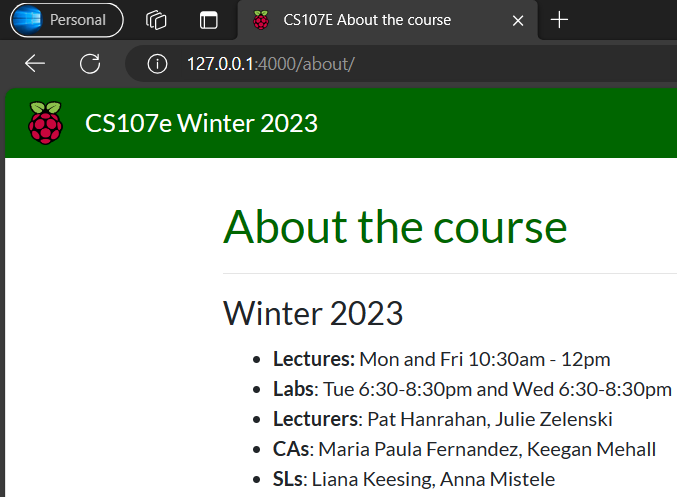
This is also the preparation work.
Luckily, I cloned the GitHub repo on time. For the latest version of cs107e, they use the Mango Pi, which is based on RISC rather than Raspberry Pi A+. I downloaded the last ARM version of the course before it updated :). I prefer ARM rather than RISC.
Because the source code file is huge, I will not upload it to this site. If you are interested in this course on the ARM version, please leave a comment or send an email to me. I’d like to share it and study it with you.
Windows + VScode + WSL-Ubuntu20.04
This code package includes the whole website, so your first step is to exact the archive to an empty folder (I used Windows to run the preview page). Then copy all of the files and folders to the “./cs107e” folder (except “cs107e” itself). For example, my work folder is C:\cs107e, I put the script (you will see it later) to C:\. And there is a cs107e in C:\cs107e. You just copy these to C:\cs107e\cs107e. After that, install Ruby, Bundler, and Jekyll following this instruction. You can manually copy from ./ to “./cs107e” if it reads no such file.
To start the local preview, run this command in cs107e’s parent folder. Then you can visit it at URL http://localhost:4000
bundle exec jekyll serve
Please do not add any file to the parent path of cs107e. Just call this folder ” work folder”(My C:\cs107e). Of course, you can write a script to run the service. But do not put it into your work folder. One of the good ways is to put your script file to the parent folder can cd to your work folder.
@echo off
cd .\"your work folder name"
bundle exec jekyll serve
pause
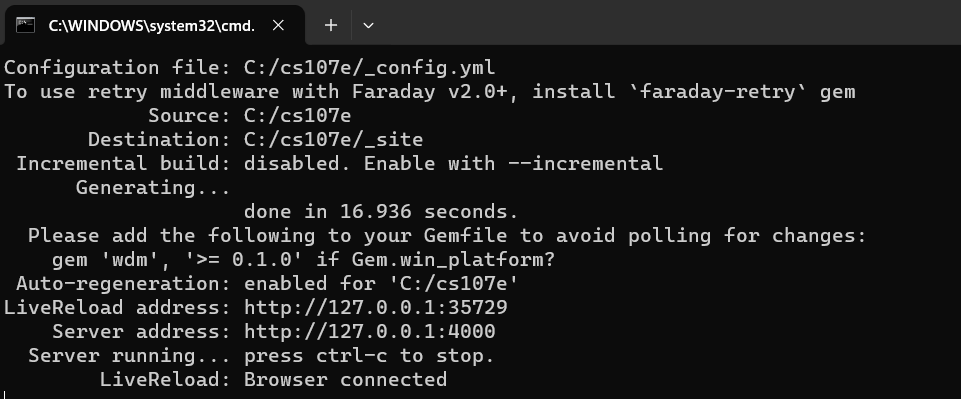
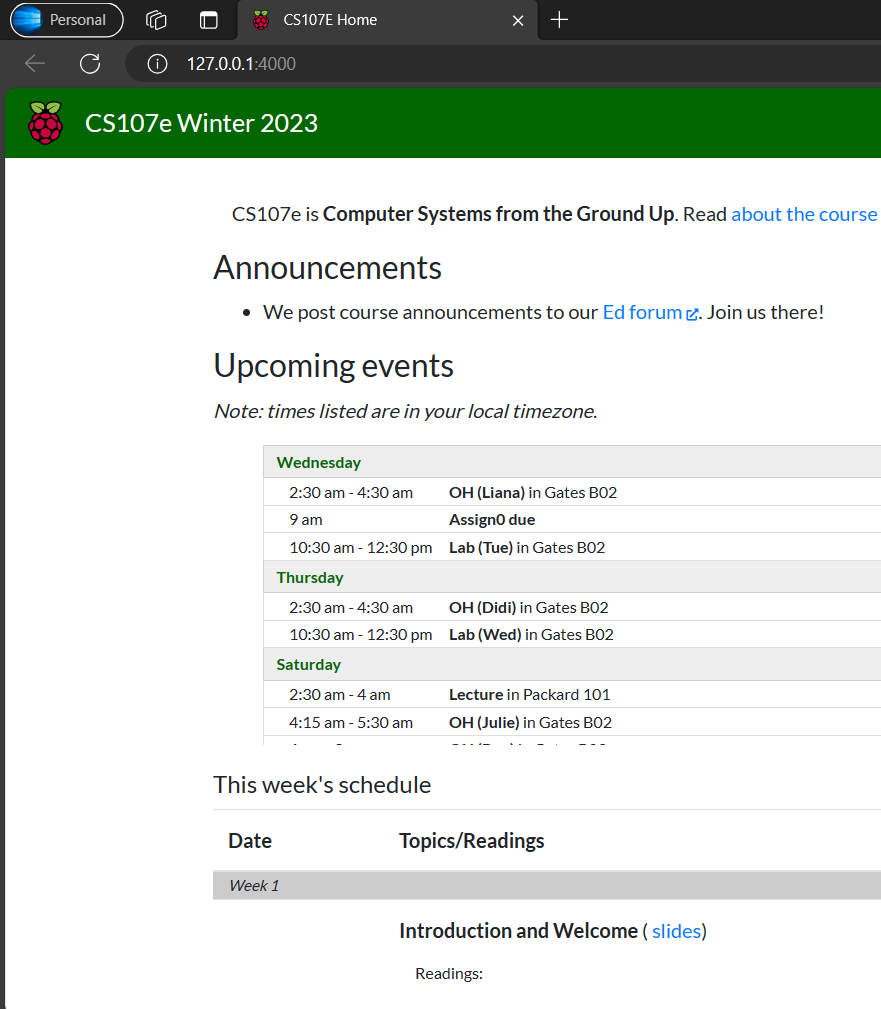
Then, you can visit the site locally and follow the instructions to prepare your environment. Because we are self-study students, we do not use git this time. Just ignore the configuration of git. Please follow your site and be careful about user permissions.
If you cannot download “gdb-arm-none-eabi_9.2-0ubuntu1_20.04+10-107e_amd64.deb“, you can contact me.
And if you transfer files from Windows to Linux, you may not be able to run the py script. Try chmod u+x ./rpi-run.py to fix.
If you meet this problem ” WSL2: libcuda.so and libcuda.so.1 should be symlink “please follow this:
cd /usr/lib/wsl/lib
sudo rm libcuda.so libcuda.so.1
sudo ln -s libcuda.so.1.1 libcuda.so.1
sudo ln -s libcuda.so.1 libcuda.so
sudo ldconfig
I recommend you use “ubuntu20.04 WSL + VScode” and configure your development environment by Admin User rather than Root user.
And I find that “which pinout” does not work, do not worry. If we encounter some problems in the future, we will kick them down the road. So, it does not matter; just ignore it and do the Final check steps.
If you click the code button but 404, you can find it in your work folder manually.
Next /cs107e_0-2/
Views: 248